I recently posted about how quick and easy it was to set up a WordPress blog on Azure. My blog site has been running for over 3 months on this platform and it really has been great. One of the key reasons I am on Azure is because I have a high confidence in the platform and that if something goes wrong I can recover. So far that’s proved true and if anything, the problems I did encounter have only reinforced my confidence that if something does go wrong that I can recover quickly. Which is ultimately what I care about: not perfection.
I’ve had some ups and downs (let’s call them learning experiences) and I thought I’d share them as I would have loved to know some of this up front.
Planning for DB Growth
When you set up WordPress on Azure using the gallery you get a MySQL instance provided by ClearDB. This is a free MySQL database that ClearDB limits to 20MB and 4 connections. If you believe your database will exceed this amount, which is quite likely since 20MB is pretty small, you can purchase a larger database. You could cancel the wizard and either choose an existing MySQL database (if a larger one already exists) or go to the Azure Store and purchase another MySQL database service from ClearDB. Then once you get a new MySQL instance, you can run the wizard again and it will appear in your pick list.
Purchasing via the Azure store is quite simple. Choose the New button in the bottom menu and choose Store. Then select ClearDB MySQL Database.
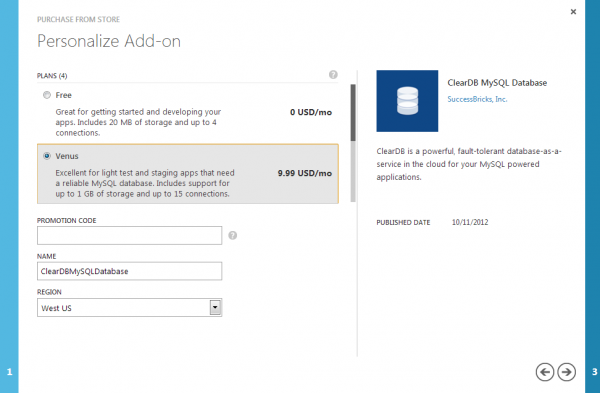
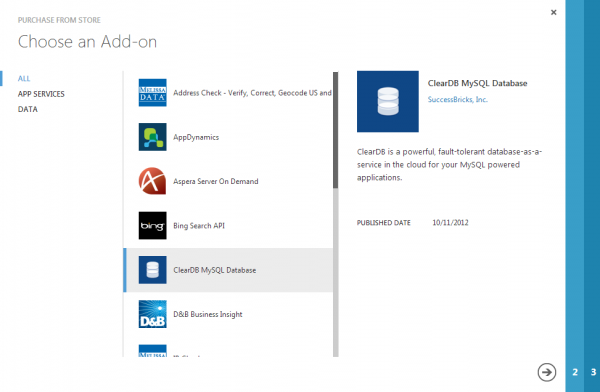 You can choose a free instance (limited to 20MB and 4 connections), or a paid instance (1GB or more of space). I chose the “Venus” option which is $9.99/month and provides 1GB of space.
Upgrading Your DB
If you already propped up your Azure site with WordPress on the free MySQL database provided by ClearDB, and you need more space, you can upgrade it. The option to upgrade the MySQL database is not currently on the Azure portal, though I suspect that this will be changed in the future because without it folks may go down the path I went, which was painful and frustrating (see my next section). Anyway, you can upgrade your MySQL database, but you have to do it from ClearDB’s web site. If you do that, then your database can be upgraded in place on Azure, at a cost.
Recovering From DB Permission Errors
It would really throw you for a loop if you woke up to errors on your blog like this, wouldn’t it?
WordPress database error: [INSERT,UPDATE command denied to user 'usernameishere'@'ipaddressishere' for table 'wp_options']
I had these all over my blog on Christmas Day (maybe Santa thought I was naughty). What’s wrong? Why is this happening?
Let me back up a bit first … Let’s say you installed your WordPress site on Azure and you didn’t see any messages that said ClearDB was hosting the database and it had a limit of 20MB. Then let’s pretend you start approaching 20MB in your database and you eventually exceed that limit. At that limit ClearDB will automatically remove INSERT and UPDATE permissions from the database tables.
So what’s the problem here? A few things:
- The 20MB limit is not displayed anywhere during the wizard process nor on the dashboard. This should be an easy fix.
- When you approach this limit ClearDB says they will warn you via email in advance. I received no such emails.
- When you hit the limit ClearDB will send another email and will turn off INSERT and UPDATE permissions on your database tables.
If you were never shown that there was a 20MB limit (or missed it), you never received an email warning you that you are close, and you never received an email once you hit the limit, then you will likely just see errors everywhere. I spoke to the ClearDB folks and they told me that the warnings are supposed to be sent. I checked my email and my spam and I received nothing from them for some unknown reason. Remember, when this happened I had no idea why this happened. There was no indication of why the INSERT or UPDATE permissions were removed. This took me some good digging around to figure out why it happened. I stumbled across many old posts searching for answers til I was able to guess that the space was the issue. When ClearDB responded to my email, they confirmed that was indeed the problem.
Suggestions for Azure and ClearDB
Let me be clear that the problem here are not the products. Azure and MySQL from ClearDB have been excellent for me. The problem is the process. Here are my suggestions:
- When approaching the MySQL quota limit, send warnings via email and show them on the Azure portal
- When you exceed the limit and the locks are placed, send an email and show a message on the Azure portal
- When the limit is exceeded, give me options for fixing the problem (reduce size of DB or upgrade) in the Azure portal
- Allow me to upgrade the free DB to a larger one on the Azure portal
- When the db size was reduced, the locks were not released after waiting for 30+ minutes. ClearDB says they should have been released within 20 minutes (in an email to me). This should be fixed
I later found that I could have upgraded the database through ClearDB, but I did not know that until much surfing of their site later. Regardless, having this in the portal would be ideal and offer an up-sell opportunity.
I realize ClearDB says emails are sent, but since I never received one I cannot assume that safeguard actually works. I believe they think it should be sent, but its worth them having a backup plan to that, I think. I’m fine with them having limits, it’s a business model.
Upgrading Manually
There is another option, which is much more manual. I tested this out and it works. However, I first recommend trying to upgrade on ClearDB’s site (unless an upgrade button appears on the Azure portal in the future).
- Dump the existing database (see section below)
- Buy a new MySQL database via the Azure store
- Restore to the new database
- Link to it in Azure portal
- Change your WordPress config file to point to the new database
Backups
Backup your database and backup your files. Azure is the cloud, not a Xerox copy machine. If something goes wrong you want to have at least 1 backup. I recommend 2 copies: 1 local on your PC and one in another cloud (I use DropBox). Then I also use Carbonite to back up both of those.
There are a few ways you can back up your WordPress site (or any content on Azure). You can FTP to get your files and copy them and you can also one of the many WordPress plug-ins that perform backups for you. Some even backup straight to DropBox for you.
I also like to grab a backup of my database directly. For this I used the tool mysqldump which comes with the MySQL suite. Once you install MySQL locally you can connect to your remotely hosted database server, grab a backup script, and store it locally. Then you can use this script to restore your database elsewhere. Obviously you will want to test this process out at least once, because you don’t want to wait til you have a failure (if you have one) to try it.
Scripting a DB with MySQLDump
Once you grab MySQL you can follow these steps to grab a backup script.
- Open a cmd prompt
- Go to
C:\Program Files\MySQL\MySQL Server 5.5\bin> - Run this command
mysqldump.exe -e -uYourUserName -pYourPassword -hYourRemoteServer yourDatabaseName > c:\localFileName.sql - The syntax for the mysqldump command is as follows: (-e makes multiple values rows for the insert syntax)
mysqldump.exe -e -u[user] -p[password]
    -h[host] [database] > [output file]
This puts a script file on your machine that will generate the schema, permissions, and the data from your MySQL database.
Generating the Database
While you can use mysqldump.exe to dump the script file, you can use mysql.exe to generate a database.
- Open a cmd prompt
- Go to
C:\Program Files\MySQL\MySQL Server 5.5\bin> - Run this command (notice that the
<arrow points the opposite direction as mysqldump)mysql.exe -uYourUserName -pYourPassword -hYourRemoteServer yourNewDatabaseName < c:\localFileName.sql - The syntax for the mysql command is as follows:
mysql.exe u[user] -p[password]
    -h[host] [database] < [input file]
This process took less than 15 minutes in total from download of the tools, installing MySQL, creating the sql script file, and generating the new database from it. Your mileage may vary, of course.
Reducing the Database
You can also remove rows form the database to try to reduce the size. If you can’t use a plug-in to do this because of the INSERT/UPDATE locks in place due to the 20MB limit, you can use a tool like the MySQL WorkBench 5.x CE. You can download that tool separately or grab it from the MySQL installation. You can use MySQL WorkBench to access your remote database and run some queries against it to remove unneeded data and reduce the database size.
Do this at your own risk. Editing the database directly could cause irreparable damage to the database. I offer no warranties on this. If you do proceed, backup your database first. I warned you!
Remove Spam Comments
You can remove spam comments in mass using a SQL statement. This is helpful if you get slammed with 10,000+ spam. First, always run your query in SELECT format. This query finds all spam. The key here is that if you wrote the query wrong you may be selecting valid data that you do not want to delete. By using a SELECT first, this helps safeguard you for mistakes that we all make.
SELECT * FROM wp_comments
    WHERE wp_comments.comment_approved = 'spam';
If that query looks appropriate, then you can change it to a DELETE statement, like this.
DELETE FROM wp_comments WHERE wp_comments.comment_approved = 'spam';
Remove Post Revisions
As you write posts, WordPress creates revisions for you. If you are like me, you save drafts along the way. If you don;t want these old revisions you can remove them and free up disk space. First run this query to find the old revisions.
SELECT * FROM wp_posts WHERE post_type = "revision";
Then if the query looks right, you can delete them.
DELETE FROM wp_posts WHERE post_type = "revision";
Summary
Hopefully some of these tips can help you head of any problems that you may encounter. I’ve been very happy with Azure running WordPress and MySQL so far (been 3+ months). I think as the process improves some of these options may be considerably simpler as they are added to the Azure portal. I don’t know when or if that will happen, but I’ve been very impressed with the rate of positive change that the team has put into place to date, thus I highly recommend giving them a shot.
Special thanks to Cory Fowler, Microsoft Azure Technical Evangelist, who helped me identify many of these issues and point me to solutions.


